Keep drills, songs, solos, activities, references, goals, and collections connected.
ZoneBuilder™ STAGE
Build your practice. Find the zone.
Designed to help you enter the zone.
Alpha RC1 · ZB-20260921.002
Mode
Practice
Today's Session iThis is your simplified practice view. Start the current item, use timer or metronome if helpful, and work through your queue.
Z
ZoneBuilder
Welcome to ZoneBuilder
Build your practice. Find your zone.
Turn your drills, songs, lesson notes, goals, collections, and references into a repeatable practice routine.
You’re currently viewing the sample practice setup created by the demo.
Use it for a quick look around, or clear it before setting up your real practice.
Practice is ready
Your content is waiting for a schedule.
ZoneBuilder runs from schedules. Create a schedule to decide what appears in Practice and in what order.
How ZoneBuilder helps
ZoneBuilder helps you turn your own practice material into a repeatable practice routine.
Create a simple playlist or a structured schedule with blocks, rotation, and review.
ZoneBuilder turns your plan into a focused session with timer, tools, notes, and progress.
New to Structured Practice
Start by choosing one musical goal, then gather a small set of drills, songs, exercises, lesson notes, or references that support it.
I Have Practice Material
Turn drills, songs, lesson notes, references, or collections into a routine you can actually run.
I Already Have a Practice System
Map your existing routine into ZoneBuilder using playlists, blocks, rotations, and review schedules.
Now Practicing
—
—
Show Instructions Inline practice guidance
Up Next iYour queue shows what ZoneBuilder has planned for today. Completed items drop out as you finish them.
0 / 0Click item to edit. Ready
Countdown Timer
02:00
Ready
Recorder Open
00:00
Quick 60-second practice snapshots stay on this device.
Resources for This Item
Supporting material for this item
No supporting material attached. Edit this item to add a link or file.
Save a draft now, or include it automatically when you tap Done.
Reminders
Persistent prompts that surface next time this item becomes current.
Runtime settings changed.
Today's Practice
Schedule
Workspace
Default Guidance
Practice Workspace
Workspace slot
Ready to Practice
Countdown
Timer · presets · start/pause/reset
Recorder
Record · stop · playback · status
Today's Practice
Current queue and what comes next
Workflow rail
Scheduled Item
High priority work
ZoneBuilder Guide
ZoneBuilder Guide
Learn the system, explore examples, and build more effective practice routines.
Ready when you are.
Plan Your First Practice Routine
Guided setupStart with one goal, gather supporting material, then turn it into a routine.
How ZoneBuilder Organizes Practice
WorkflowLearn how goals, practice items, schedules, sessions, and progress work together.
Practice Concepts
Concept indexExplore individual ideas like Focus Rotation, Keep Fresh, Rotation Blocks, Spaced Repetition, and Interleaving.
Scheduling Behavior
Practice flowZoneBuilder is not a checklist app. It manages warm-ups, rotation, daily targets, and resume behavior as one practice flow.
Map Your Existing Practice System
Advanced startTranslate your current warmup, technique, repertoire, review, and creative work into ZoneBuilder.
Importing to Your Library
Import guidePaste, drop, or copy practice material and let ZoneBuilder turn it into useful Library items.
Import can help create songs, drills, activities, resources, and collections from real-world material like set lists, PDFs, lesson notes, backing-track playlists, and instructor emails.
Collections and Blocks
Organization + practiceCollections organize your library. Blocks organize your practice.
Collections help you group and find related material. Blocks help practice items work together in a practice context.
Resources
Supporting materialPDFs, sheet music, tabs, backing tracks, videos, lesson links, audio files, notes, and web pages.
Resources help you practice. Songs, drills, solos, and activities describe what you practice.
Your Practice Has a Memory
ConceptEvery session adds history, notes, recordings, progress, and context to the material you practice.
Your work stays connected instead of disappearing when today's session ends.
Where Your ZoneBuilder Files Are Stored
Storage guideUnderstand the difference between your live workspace, app state, backups, sync, and external links.
See where your data lives and what uninstalling ZoneBuilder does not remove.
Practice Concepts
Practice Concepts Index
Practice Concepts collects the core ideas that make ZoneBuilder different. Explore them to understand why ZoneBuilder behaves the way it does, then continue into the larger Guide chapters to see how those ideas work together in real practice.
How to practice more effectively.
How switching between related skills can strengthen recall, timing, and musical transfer.
Use short and scheduled breaks to stay focused, reduce fatigue, and support longer practice sessions.
How practice cues can keep attention on technique, feel, timing, and intention.
How outcomes connect to the drills, songs, solos, activities, and references you practice.
How ZoneBuilder handles unfinished practice when a session crosses into a new day.
How ZoneBuilder builds intelligent schedules.
How larger collections stay active without practicing every item every day.
How rotating containers support Interleaving, Keep Fresh, and scheduler organization.
How learned material returns over increasing intervals just before it fades.
How one drill can move through keys while ZoneBuilder remembers what comes next.
A realistic advanced schedule showing how the concepts combine.
How Daily Blocks, rotations, review, and collections can work together in one realistic plan.
Learn how to read the schedule ZoneBuilder creates.
How to look ahead and understand the practice week ZoneBuilder generated.
How to see which goals your schedule supports.
How to inspect a generated practice day and understand why each item appears.
Practice Methods
Interleaving
Switch on purpose so your brain has to retrieve the skill again.
Interleaving means switching practice contexts before one task becomes automatic for the moment. When you return, your brain has to retrieve the skill again instead of simply continuing from short-term familiarity. This principle improves any well-designed practice routine; ZoneBuilder simply helps automate it.
Practicing continuously feels productive because the pattern stays warm in short-term memory. That fluency can disappear when you meet the idea later in a new musical context.
The return is the important part. You are no longer riding momentum; you are rebuilding the skill from memory.
Mental Model
Leave the path. Find it again.
- 1Practice an idea
- 2Switch context
- 3Return from recall
- 4Strengthen the memory
Real Example
Different tasks create chances to retrieve the first skill again.
Technique
↓
Song
↓
Technique
↓
Ear Training
↓
Technique
A
↓
B
↓
A
↓
B
Each return asks, "Can I find this again?" You reconstruct the skill from memory instead of extending the same repetition streak.
Working on something else breaks the short-term groove. Returning later forces the brain to rebuild the movement, sound, or idea more independently.
Interleaving is not random switching.
The goal is not simply adding variety. The goal is intentionally creating opportunities to retrieve a skill after working on something else. That retrieval is the training effect.
Keep practice segments short, about 3-5 minutes, and switch before the first task starts running on autopilot.
Return later and rebuild the skill from memory. Once that feels comfortable, occasionally vary the order so your brain cannot rely on routine alone. ZoneBuilder can automate this through Rotation Blocks, while the learning principle remains retrieval after a context switch.
Learn how ZoneBuilder applies interleaving automatically.
Practice Methods
Micro Breaks & Practice Recovery
Give your brain a moment to replay what you just practiced.
ZoneBuilder uses micro breaks and scheduled full breaks because longer practice is not always better practice. Brief pauses can relax your hands, reset attention, and give freshly practiced movements a moment to settle before the next repetition.
Each repetition gives your ears, hands, and memory something new to organize. If you immediately grind forward, tension and autopilot can take over before the last attempt has settled.
Micro breaks are brief transitions between scheduled practice items. They give you a moment to breathe, release tension, and return with a clearer sense of what changed.
Mental Model
Play it. Pause. Let it replay. Try again.
- 1Practice
- 2Pause
- 3Replay
- 4Return clearer
Scheduled breaks can appear after a configured amount of active practice time, such as every 10, 15, or 20 minutes. Their duration can also be adjusted in Settings, so longer sessions can include a reset that fits the way you practice.
ZoneBuilder treats recovery as part of the practice flow. A break can protect the quality of the next drill, song, or activity instead of competing with it.
Benefits
What breaks help protect.
Cleaner focus
Less tension
Better listening
Longer useful sessions
More intentional starts
Fewer autopilot reps
If a phrase starts getting worse, do not just push harder. Pause briefly, let the last attempt settle, then return with one clear thing to improve.
When you stop for a few seconds after practicing a passage or movement, the pause is not necessarily empty time. Research on motor learning suggests the brain can rapidly replay pieces of what was just practiced during short rests. That replay may help fresh movement patterns become more stable before the next attempt.
In some motor-learning studies, replay activity has been observed in a compressed form, much faster than the original movement. The practical lesson is simple: a short pause can be part of learning, not a break from learning.
Let the last rep settle
Reset your hands
Hear what changed
Return with intent
Keep quality high
Pause briefly, return intentionally, and let practice become learning.
Practice Concepts
Focus Rotation
Practice with intention instead of on autopilot.
Focus Rotation gives your attention a clear job: one reminder at a time, gently repeated while you practice, so better habits can form without breaking your flow.
When timing, tone, posture, accuracy, and technique all compete at once, practice can turn into mental noise.
ZoneBuilder reminds you to bring one detail into the foreground, then lets your playing keep moving.
How It Works
A simple loop for better attention.
- 1Choose reminders
- 2Start practicing
- 3See a gentle cue
- 4Shift attention
- 5Keep playing
- 6Next reminder
Example Focus Reminders
Small cues that change how you practice.
Relax shoulders
Picking hand
Timing
Tone
String noise
Light touch
Posture
Accuracy
Think of Focus Rotation as having a teacher quietly tap you on the shoulder and say, "For the next minute, pay attention to this one thing."
That single reminder can dramatically improve the quality of your practice without interrupting your flow.
Consistent attention to one improvement at a time eventually becomes automatic.
Practice Concepts
Continuing vs Starting Fresh
There is no single correct way to begin today.
ZoneBuilder remembers where you left off. You decide whether today should continue that work or begin with today's planned practice.
Four Common Situations
Choose the start that fits the day.
ZoneBuilder resumes automatically from exactly where you left off. No decision is required.
Today's practice begins normally: warm-ups first, then today's schedule. Nothing special happens.
Choose this when you're in the middle of learning something and want to preserve momentum. Warm-ups still run first. Then the main rotation resumes where it stopped.
Warm-ups still happen first. Then today's planned schedule starts from the beginning. Yesterday's unfinished work remains available but is not lost.
Decision Guide
A simple way to choose today's start.
There isn't a right answer.
Sometimes preserving momentum is the best choice. Sometimes today's routine deserves a fresh start. ZoneBuilder remembers enough to let you decide instead of forcing either approach. That flexibility is part of what makes the scheduler work with real practice rather than against it.
Practical Examples
Two common ways this shows up.
If yesterday ended in the middle of a tricky phrase, continuing helps preserve the learning momentum you already built.
If staying with today's balanced routine matters more than yesterday's unfinished work, begin fresh and let ZoneBuilder build the day normally.
ZoneBuilder remembers where you stopped, but always lets you decide how today's session should begin.
Practice Concepts
Goals vs Practice Items
Know where you're going before choosing what to practice.
Songs, drills, solos, and activities are the work you do. Goals provide the direction. ZoneBuilder keeps these separate so your practice always has a purpose.
A goal gives your practice direction. It describes the musical result you are working toward.
Practice items are the drills, songs, solos, activities, and resources that help you move toward the goal.
Mental Model
Direction turns practice into progress.
- 1Goal
- 2Skills to Improve
- 3Practice Items
- 4Schedule
- 5Progress
Real Example
One goal often needs many kinds of practice.
Alternate picking
Pentatonic fluency
Timing
Vibrato
Spider Exercise
Pentatonic Drill
Shuffle Rhythm Activity
"Blue on Black"
- Warm-ups
- Technique
- Song Practice
- Review
Spider Exercise may help finger independence, alternate picking, speed, and accuracy. The item is reusable because the purpose can change.
✓ Finger Independence
✓ Alternate Picking
✓ Speed
✓ Accuracy
Meaningful goals usually need a mix of songs, drills, activities, solos, recordings, and resources. That is why Goals live separately from the Library.
Practical Examples
Start with the improvement, then choose the work.
Metronome exercise
Chord transitions
Rhythm activity
Current song
Performance songs
Difficult passages
Recording review
Warm-up drills
A goal is not a song.
A song may help achieve a goal. A drill is not the goal either. It is one of the tools you use to reach it.
Don't choose practice because it's familiar.
Choose practice because it moves you toward a goal. When every practice item has a purpose, your sessions become more intentional and more rewarding.
Separating purpose from practice helps every session become more meaningful.
Practice Concepts
Keep Fresh
Keep more material alive without practicing everything every day.
As your Library grows, you cannot practice every song or drill every day. Keep Fresh rotates a small selection into each session so older material stays active without crowding the day.
Songs, solos, exercises, and techniques can pile up until review feels like an impossible checklist.
The collection stays intact. Today's practice gets only the amount you can realistically handle.
Mental Model
The collection stays large. Today stays manageable.
- 1Large Collection
- 2Keep Fresh Rule
- 3Today's Selection
- 4Next Session
- 5Different Selection
Real Example
A set list can stay active without taking over practice.
12 songs
A realistic review limit.
Song #3
Song #9
The whole set stays familiar without playing all 12 songs today.
You spend less time rebuilding songs, drills, or ideas from memory.
Keep Fresh protects the rest of today's practice by limiting how much review appears.
Collections + Keep Fresh
Organization and scheduling work together.
A set list or drill group stays organized in one place.
Two songs, three drills, or whatever fits the session.
You see enough to maintain the material without crowding the day.
Practical Examples
Good fits for regular review.
Current repertoire
Holiday songs
Performance set list
Ear training drills
Technique exercises
Improvisation ideas
What You'll Notice
Maintenance starts feeling lighter.
✓ Older songs stay playable.
✓ Repertoire grows without becoming overwhelming.
✓ Less time re-learning forgotten material.
Keep Fresh does not randomize your practice.
It rotates material intentionally over time. The goal is retention, not surprise.
Use Keep Fresh for material you want available, not everything you have ever learned.
A focused Keep Fresh collection is more useful than a catch-all backlog.
Increase the amount only when it feels effortless.
Scheduling Concepts
Rotation Blocks
Give the scheduler a group it can rotate as one unit.
A Rotation Block is a scheduling container. It groups practice items so ZoneBuilder can rotate that group without prescribing what belongs inside or how your practice should be organized.
The block can hold drills, songs, activities, reviews, prompts, assignments, or any mix. The important part is that the scheduler can treat the group as one rotating unit.
Rotation Blocks do not decide what is musically related or what you should practice. They provide structure when a group of items needs to rotate.
Concept Model
One container. Three scheduling jobs.
Any set of items that should be considered together for rotation.
The block owns its items, item count, order mode, repeat behavior, and other block-specific options.
The schedule places the block on days or sessions and decides where it fits in the overall practice plan.
Why Use One?
Rotation Blocks solve three scheduling problems.
Interleaving is the learning technique. A Rotation Block gives the scheduler a container it can use to alternate practice ideas intentionally.
When there is more material than one session should hold, a Rotation Block can support manageable selections over time.
The block keeps the schedule readable and gives ZoneBuilder one container to place, rotate, and resume.
If each item can be scheduled independently, you may not need a block. If the group needs to behave as a rotating unit, a Rotation Block gives the scheduler that structure.
The block controls what rotates and how it rotates. The schedule controls when that configured block appears and where it sits in the practice plan.
Interleaving and Keep Fresh are reasons. Rotation Blocks are structure.
The Interleaving guide explains why switching practice ideas can help. The Keep Fresh guide explains long-term maintenance. This page explains the scheduling container that can support those ideas.
Do not start by asking how a Rotation Block should be organized.
Start by asking what scheduling problem you are solving. If the problem is interleaving, keeping a larger set fresh, or treating a group as one rotating unit, a Rotation Block is probably the right container.
Use it when ZoneBuilder needs to rotate a group of practice items as one unit.
Scheduling Concepts
Spaced Repetition
Review just before forgetting.
Spaced Repetition brings learned material back over increasing intervals. It is not daily repetition. It is returning when the memory needs help, before it slips away.
A lick, chord shape, scale sound, rhythm pattern, or song section can feel solid today and foggy next week. Practicing it every day wastes time. Ignoring it lets the memory cool off.
Each successful review shows the memory is stronger. The stronger it gets, the farther away the next review can be. That is why the intervals expand.
Mental Model
The gaps grow as the memory gets stronger.
Real Example
A learned phrase returns less often as it becomes reliable.
You learn the fingering, sound, and timing well enough to play it without staring at notes.
The review is close because the idea is still new. You prove you can retrieve it after a short break.
If each return goes well, ZoneBuilder can give the item more time before it appears again.
That keeps practice focused on playing instead of calendar math.
When an item returns just before forgetting, you rebuild it from memory. That act of retrieval teaches your brain the idea is worth keeping.
Easy material can wait longer. Fragile material can return sooner. That keeps review useful without turning every session into the same list.
Spaced Repetition does not mean practice the same thing every day.
Daily repetition can make practice feel disciplined, but it often spends attention on material that is not in danger yet. Spacing works because the return is timed, not constant.
A review that feels slightly difficult is usually doing its job.
If it feels harder than expected, your brain may be rebuilding the memory. ZoneBuilder creates those opportunities, but you stay in control: give an item more practice before moving on when it still feels shaky.
Learn it, leave it, then return just before the memory fades.
Scheduling Concepts
Key Rotation
One drill can become many practice sessions.
Key Rotation keeps the exercise the same while changing the musical context. ZoneBuilder remembers your progress, so one useful drill can keep developing without becoming a long duplicate list.
You may play an exercise comfortably in A, but feel less certain when the same exercise moves to Bb, C, or Db. The exercise is familiar. The musical context has changed.
Instead of creating separate copies of the same drill, ZoneBuilder can move one exercise through selected keys and remember your progress automatically.
Mental Model
Same movement, new musical address.
The motion, fingering, timing, and focus stay consistent.
A
↓
Bb
↓
B
↓
C
↓
Db
↓
...
Each key asks you to place the same exercise in a new musical setting without changing the exercise itself.
Real Example
A single drill can create a useful practice sequence.
Learn the sound, timing, and movement pattern.
Same exercise, slightly different musical location.
The musical idea starts transferring instead of staying memorized in one place.
Continue in order or choose intelligent variety. ZoneBuilder remembers your progress either way.
Changing keys asks your ear, hands, and instrument map to reconnect the same exercise in a new place. That builds transfer better than repeating one comfortable version forever.
If you stop after Bb, the next practice can continue at B or choose a random unplayed key. ZoneBuilder remembers your progress either way.
Key Rotation does not mean every key is a separate drill.
The exercise stays the same. The key is the changing context. Treat it like one practice idea traveling through your instrument, not twelve unrelated assignments.
Rotate only enough keys to stay challenged and oriented.
For a new drill, two or three keys may be plenty. Add more keys when the movement is stable, the sound is clear, and the next key feels like useful exploration rather than overload.
That is how one well-designed drill becomes many valuable practice sessions.
Understanding Your Schedule
Preview Calendar
A weather forecast for your practice week.
The Preview Calendar shows the practice days ZoneBuilder has already generated before they become today's queue. It helps you spot busy days, lighter days, Keep Fresh selections, Rotation Blocks, upcoming reviews, and estimated workload before practice begins.
Use it to scan the calendar days ZoneBuilder has filled in: technique work, Keep Fresh activity, Rotation Blocks, reviews, lighter days, and heavier days.
A quick look ahead helps you anticipate workload, notice busy or light days, and catch schedule problems before they interrupt practice.
Mental Model
Read it like a practice forecast.
See tomorrow and the next few days before you open the practice screen.
Notice busy days and lighter days without reading every item one by one.
Recognize why a day looks different before it becomes the session queue.
Real Example
The calendar makes the week visible at a glance.
One focused block
Short selection
Upcoming review
Longer estimated workload
Easier to fit
This does not tell you how to build the schedule. It helps you read the forecast: what appears, why it appears, and where the week may feel busy or light.
What You're Looking For
Notice the shape of the week before you practice.
Calendar days with more work, longer estimates, or several scheduled categories.
Days where practice is intentionally smaller or easier to fit.
Block work appearing on the days ZoneBuilder selected for it.
Small selections from larger material returning so they stay active.
Upcoming reviews appearing on the days they are due.
The rough size of a practice day before you start.
The Preview Calendar is not another calendar to manage.
It is the forecast for the schedule ZoneBuilder generated. You are looking for what is coming, why certain work appears, and whether the week feels balanced.
Check the forecast before beginning a new practice cycle.
Small schedule adjustments are easier before the week starts. If Thursday looks heavy or Friday looks light, you can notice that early instead of discovering it mid-session.
Read the forecast, understand the workload, and begin practice knowing why the week looks the way it does.
Understanding Your Schedule
Goal Map
See why today's work is here.
The Goal Map helps you read the schedule ZoneBuilder already generated. It connects today's practice items to long-term goals so you can see whether your practice matches what matters most.
Every scheduled item exists for a reason. The Goal Map shows which goals those items support.
The map helps you notice whether today's work supports the musician you are trying to become.
Mental Model
A roadmap connecting today's work to tomorrow's musician.
Drills, songs, activities, solos, and review.
The bigger reasons those items appear.
The skills and confidence you are building toward.
Real Example
Several kinds of practice can support one larger outcome.
- GoalPlay blues confidently with a band.
- Technique DrillClean bends and vibrato.
- SongApply the sound in repertoire.
- ImprovisationUse the idea without a script.
- PerformanceBring it into a real musical setting.
Reading the Goal Map
Look for purpose, coverage, and alignment.
That may be right if the goal is active, important, or close to performance.
A song might build repertoire, timing, tone, and improvisation confidence at the same time.
That is a useful signal to review, especially if the goal still matters.
The Goal Map is not grading progress.
It is showing purpose and alignment: why items are here, what they support, and whether the schedule reflects your priorities.
Warm-ups, preparation activities, setup work, and similar support items may not point to a long-term goal. They still help the session run well.
The Goal Map helps you notice them so you can decide whether they should remain exploratory or connect to a long-term goal.
If one goal receives very little attention over several weeks, consider adjusting your schedule.
The map is not there to make you feel behind. It helps you notice whether your daily work still points toward what matters most.
The Goal Map helps you see where today's practice is leading without requiring every item to attach to a formal goal.
Understanding Your Schedule
View Day
Today's practice explained.
View Day helps you read today's practice. It answers one simple question for each item: why is this in today's practice?
It shows the reason label for each item so today's session feels readable instead of mysterious.
View Day may label items as scheduled for today, today's Rotation Block, Keep Fresh selection, review due today, playlist item, or scheduled event.
Mental Model
Think of View Day as: Today's practice explained.
The session shows the items in today's practice.
Each item is paired with a plain reason label you can read before you start.
Real Example
Today's practice becomes easier to trust when the labels are visible.
Warm-up Picking Pattern
Scheduled Today
This item was scheduled for today's session.
Blues Timing Block
Today's Rotation Block
This is the Rotation Block shown for today.
Friday Night Set - Song 4
Keep Fresh Selection
This item was chosen from a larger collection to keep it familiar.
Minor Pentatonic Phrase
Review Due Today
This learned item is due for review today.
Lesson Prep Jam
Scheduled Event
A scheduled event makes this practice relevant today.
Reading Today's Schedule
Read the label, then read the explanation.
This item belongs in today's practice plan.
This is the block View Day is showing for today's practice.
This item was selected from a larger collection so it stays familiar.
This learned item is ready to come back for review.
This item appears because it belongs to today's playlist.
This item appears because something on today's calendar makes it relevant.
Today's schedule is not a random playlist.
Every item has a label or explanation in View Day. Read that first before deciding whether anything needs to change.
When something surprises you, check View Day before changing the schedule.
The label may show Scheduled Today, Today's Rotation Block, Keep Fresh selection, Review Due Today, playlist item, or scheduled event. Understanding what you are looking at first makes any later adjustment easier.
You can see each item, read its label, and understand why it is in today's practice.
Scheduling Behavior
ZoneBuilder is not a checklist app. It is a practice flow system.
ZoneBuilder balances warm-ups, rotation, Daily Targets, Practice Blocks, Collections, Keep Fresh work, weekly activities, available time, and review so today's session fits the way you actually practice.
Real practice is rarely that tidy. Some days are short, some days are long, and some material needs to return more often than other material.
The scheduler assembles today's session by balancing what should happen now, what should rotate next, what should return later, and what can safely wait until another day.
Mental Model
How today's practice is assembled
- 1Warm-upsDaily fundamentals start the session.
- 2Daily TargetsGoals shape a balanced session.
- 3BlocksRelated material stays grouped.
- 4Main RotationLarge pools move forward gradually.
- 5Keep FreshImportant material stays alive.
- 6Resume NaturallyThe next session starts from the right place.
Yesterday
- Finger StretchDaily warm-up
- Picking ExerciseDaily warm-up
- Chord DrillDone yesterday
- Scale DrillDone yesterday
- Song AStopped here
The main rotation pointer remembers the last completed main item.
Today
- Finger StretchRepeats today
- Picking ExerciseRepeats today
- Song BResume here
- Song CNext in rotation
- Chord DrillLater in rotation
- Scale DrillLater in rotation
- Song ADone yesterday
Warm-ups run first. Then the scheduler resumes after the last completed main item.
Simple Or Advanced Scheduling
Your schedule can grow with you.
You are not expected to build an advanced schedule on day one. Start with a simple playlist, then add structure only when it helps your practice.
Begin with one playlist, a few warm-ups, or a small set of drills. A simple schedule is still a real ZoneBuilder schedule.
Ordered Playlist
Daily Warm-ups
One Practice Block
As your practice system grows, add scheduling features only when they solve a real planning problem. The scheduler grows with the musician.
Keep Fresh
Weekly Activities
Calendar Awareness
Spaced Review
Warm-up items are daily pre-practice work. They do not advance the main rotation pointer.
Rotating schedules remember the next main item after completed main work.
Some playlists are intentionally reset from the top each day.
Daily Targets encourage balanced attention to important areas without turning every area into a must-finish checklist.
Large bodies of work can move through gradually, so missed time does not derail the plan.
Blocks organize related work, but Practice still presents the next useful item in flow.
Stopping early is normal. ZoneBuilder keeps the plan ready for the next session.
Warm-ups reset daily. The main schedule pointer belongs only to main rotating work.
Flexible Schedule Execution
ZoneBuilder creates the schedule, but you are not trapped inside it.
You can follow the planned order, jump ahead to something you feel like practicing, or manually start a scheduled item when it makes sense.
When you complete a scheduled item out of order, ZoneBuilder marks that item complete without forgetting where the normal schedule flow left off. You can return to your previous spot or continue from the item you jumped to.
If you skip ahead and leave earlier items unfinished, ZoneBuilder can help you pick them up later or leave them unfinished for the day. Only the work you actually complete is counted as completed.
Example
- Warm-upsCompleted
- Technique WorkExpected next
- Live Rotation BlockJump ahead
You decide you are in the mood to work on live songs, so you jump ahead to the live rotation block.
Afterward
- Return to Technique WorkPrevious spot
- Continue From Live BlockForward flow
Either choice is valid. ZoneBuilder tracks what you completed and keeps the remaining schedule clear.
Why It Feels Different
The scheduler balances more than order.
Short day, long day, different template, or lighter workload: the plan can adapt instead of expecting perfect consistency.
Advanced scheduling can make room for busy days, longer sessions, and future calendar context without turning practice into calendar maintenance.
Ask practical planning questions: What would Monday look like? What fits in 30 minutes? What happens if I add another drill?
Material can return when it naturally needs attention. A dedicated guide will cover spaced review in more detail.
Work that belongs on certain days can appear when appropriate without becoming a rigid daily checklist.
Collections let schedules work with groups of related songs, drills, references, or assignments instead of managing every item one by one.
Good practice isn't about finishing everything.
It is about consistently working on the right things at the right time. ZoneBuilder keeps that balance so you can focus on playing instead of planning.
These concepts build on the scheduling ideas introduced here.
Keep Fresh
Weekly Activities
Spaced Review
Calendar Scheduling
Schedule Templates
Consistent practice matters more than perfect completion.
Practice Memory
Your Practice Has a Memory
Every practice session builds on the last.
Practice isn't just what you did today. ZoneBuilder remembers what happened while you practiced, including recordings, notes, observations, progress, and history, so every item carries context forward instead of starting over each day.
The Big Idea
Every session adds context to the next one.
- 1PracticeYou work on a drill, song, solo, or activity.
- 2Practice MemoryNotes, recordings, observations, and progress stay with it.
- 3Better PracticeThe next session starts with context.
What Gets Remembered
Every item has its own history.
A drill, song, activity, or solo can gradually collect the context that makes future practice more useful.
Practice rhythm
Time context
Practice notes
Recordings
Progress signals
Reminder notes
Practice history
Session summaries
Key changes
Instructor feedback
More Than a Dashboard
Each practice item develops its own story.
Dashboards summarize progress. Practice Memory preserves the complete story behind that progress, and the dashboard is only one way to view it.
Drill History Example
Spider Exercise
Over time, one small drill becomes a living practice record.
Technical control, finger independence, and the observations that carry into the next session.
It is easy to lose valuable context between sessions: what improved, what still felt difficult, which recording sounded better, what your teacher wanted to revisit, and what observation should carry into the next session. ZoneBuilder keeps that memory attached to the work itself.
Instead of trying to reconstruct several weeks from memory, student and teacher can begin with the same story: recordings, notes, reminder notes, progress, practice history, completed work, and observations. The report becomes a shared conversation, not a status update, so lesson time can focus on improvement.
Great practice isn't just repetition.
It is remembering what happened last time and building on it. ZoneBuilder helps you continue the conversation with your own practice instead of beginning again every day.
Every session becomes part of your musical story. Your practice has a memory, and that memory helps you improve.
Explore your practice memory
Open MyZone to view progress, practice history, and the context that can support future lessons.
Import
Importing to Your Library
Turn the practice material you already have into an organized Library.
Import is the fastest way to turn lesson notes, song lists, PDFs, links, playlists, emails, and mixed practice material into Library items you can review, edit, and save.
Mental Model
Import turns raw material into reviewed Library items.
- 1Practice MaterialPaste text or drop files you already have.
- 2ZoneBuilder Analyzes ItThe material is read for useful practice content.
- 3Suggested Library ItemsSongs, drills, activities, resources, and collections can be suggested.
- 4Review & ClarifyYou confirm what each suggestion should become.
- 5Save to LibraryOnly reviewed material becomes part of your Library.
It helps organize material you already have instead of making you retype it from scratch. Most musicians only use Import occasionally, but when you already have practice material, it can save hours of manual entry.
- Reads pasted text or dropped files
- Identifies useful practice material
- Suggests songs, drills, activities, resources, and collections
- Asks clarifying questions when material is ambiguous
- Preserves the original source when helpful
- Lets you review before saving
Use it when a teacher, document, email, playlist, or rough practice plan already contains useful musical information.
Lesson notes
Song lists
PDF exercise sheets
Backing-track links
Email notes
Rough practice plans
Mixed lesson material
Use Import when you already have lesson notes, PDFs, playlists, copied text, emails, or rough practice plans. Use New Item or Quick Add when you are creating one drill, song, activity, or resource from scratch.
Import always lets you review, edit, and confirm suggestions before anything becomes part of your Library.
Your original PDFs, lesson notes, emails, and links can remain attached as resources, so you always have access to the original context behind your practice items.
Practical Examples
Different material can become different kinds of Library items.
Import a song list
Keep Your Hands To Yourself
The Georgia Satellites
Key: A

Shooting Star
Bad Company
Key: A
A list of songs with artist and key information.
Separate song records, artist names, key metadata, and an optional source set.
Song titles, artist spelling, keys, duplicates, and whether the list should become a collection.
Song Library items you can schedule, edit, attach to goals, or import again later without creating duplicates.
Create a drill from a PDF
Drop a PDF drill sheet into Import.
A PDF exercise sheet, tab page, or teacher handout.
A drill, instructions, practice notes, and the original PDF as a resource.
The drill title, instructions, category, tags, and whether the PDF should stay attached.
A formatted drill with the source PDF connected, so you can practice the item without losing the original sheet.
Import backing-track playlists
Minor
https://youtube.com/playlist?...

Major
https://youtube.com/playlist?...
Labeled playlist links from an email, lesson note, or copied text.
Playlist resources, a resource collection, and tags such as backing, playlist, minor, major, or blues.
The collection title, playlist names, source, tags, and whether each URL should be saved.
A searchable backing-track collection. Each playlist remains one resource; ZoneBuilder does not import every video inside the playlist.
Turn lesson notes into practice items
Work on alternate picking.
Start slowly.
Focus on muting.
Teacher notes or your own rough instructions from a lesson.
A drill, activity, or reference note, depending on what the text describes.
The suggested item type, title, instructions, goals, tags, and any source note you want to preserve.
A practice item you can run in a session, with the lesson context still available for review.
Import mixed lesson material
A lesson email containing songs, notes, playlist links, and practice instructions.
A mixed email, copied note, or lesson document that contains more than one kind of practice material.
Songs, resources, resource collections, activities, drills, and original notes worth keeping.
Which parts should become separate Library items and which parts should stay together as source material.
A cleaner Library built from the material you already had, with review steps before anything is saved.
When Import Is Not Sure
Clarification is part of the workflow.
Import asks questions because organizing your material correctly is more valuable than making assumptions. The goal is not perfect automation. The goal is faster, safer organization.
The same notes may describe one focused exercise or a broader practice task.
A title with a link may be a single resource, while several labeled links may be a collection.
A video, PDF, or email can be saved as reference material, or attached to something you practice.
Import may ask whether material should create something new or attach to an item already in your Library.
Import speeds up organization, but you stay in charge.
Reviewing suggestions helps ZoneBuilder keep songs, drills, activities, resources, and collections connected in the way you actually practice.
ZoneBuilder helps organize what you already have instead of making you start over.
Library
Organizing Your Library
The Library is the source of truth for your goals, practice items, resources, and collections. Use filters and search to find what you need, then open an item to review or edit its details.
Goals describe what you are trying to improve or maintain. Practice items can be linked to one or more goals.
Songs, drills, solos, and activities describe what you actually practice.
Resources and collections help organize the material that supports your practice without turning it into a schedule.
Repertoire, set-list material, and songs you want to learn, maintain, or perform.
Focused exercises for technique, timing, fretboard knowledge, and other repeatable skills.
Practice tasks or workflows such as listening, transcribing, review sessions, or lesson follow-up.
Individual solos or lead pieces that may be practiced separately from a full song.
PDFs, tabs, videos, backing tracks, lesson links, notes, and reference material that help you practice.
Reusable groups of related Library items. Collections organize your library; Blocks organize your practice.
Choose a type, choose a Library view, then search within the filtered results.
Use the Library + button for a single new item, or Import to Library for pasted lists, PDFs, and lesson material.
Collections and Blocks
Collections and Blocks
Collections organize your library. Blocks organize your practice.
Collections keep related Library material together so it is easy to browse and find. Blocks group practice items so they can be practiced together under a shared practice or scheduling context.
It helps you organize, browse, find, and group related Songs, Drills, Solos, Activities, resources, or other Library material.
A Collection does not by itself decide when something is practiced, how often it returns, or the order of a practice session.
It groups one or more practice items so they can be practiced together under a common practice context.
A Block is intended to participate in practice and scheduling behavior. It is about what happens during practice, not just where material is stored.
How They Fit Together
Different jobs, same practice system.
- 1Collection: Major Scale ExercisesKeep related scale material easy to browse.
- 2Find the right itemsUse the Collection when you want to gather or review the material.
- 3Block: Daily TechniqueUse some or all of that material in a practice context.
- 4Practice togetherThe Block defines how those items participate in practice.
Real Example
One musical idea, two uses.
Collection: Major Scale Exercises
Find every major-scale drill
Keep related resources nearby
Block: Daily Technique
Practice selected scale items together
Shape the practice context
You might keep all of your major-scale exercises in a Collection called Major Scale Exercises. You could then use some or all of those exercises in a Daily Technique Block.
The Collection helps organize and find the material. The Block defines how that material participates in practice.
Simple Comparison
Choose the tool by the job.
Collections and Blocks are complementary. They answer different questions.
- CCollectionOrganizes Library material, helps grouping and finding, and can exist purely for reference.
- BBlockOrganizes practice, contains practice items, and carries practice or scheduling behavior.
Start with a Collection when you are trying to keep material tidy. Think in Blocks when you are deciding what should happen during practice.
You can use Collections heavily, lightly, or mostly for reference. They do not need to become practice Blocks unless that helps your routine.
Use Collections to find what belongs together. Use Blocks to shape how those items show up in practice.
Resources
Resources
Resources travel with your practice.
Resources are supporting materials that stay attached to the work you are doing. They help the right tabs, PDFs, videos, backing tracks, recordings, notes, and web pages appear close to the songs, drills, solos, activities, and collections they support.
Tabs, PDFs, videos, backing tracks, recordings, notes, and web pages end up in different folders, bookmarks, messages, and browser tabs. Musicians lose practice time searching for the thing they need.
A song, drill, solo, or activity is the work. A Resource is the supporting material that stays attached to that work.
Mental Model
The practice item defines the work. Resources stay attached to it wherever it appears.
- 1Practice Item
- 2Attached Supporting Material
- 3Ready in Practice
Real Example
One song can carry everything that helps you practice it.
- 1Song
- 2Tab
- 3Backing Track
- 4Lesson Video
- 5Performance Notes
One practice item may have many Resources, and one Resource may support multiple practice items.
Less searching means more practicing. When the work appears, the material that supports it stays close by.
An entire repertoire, lesson packet, or review collection can carry supporting material together.
Resources are not practice items.
They support practice items. They do not replace drills, songs, solos, or activities.
Attach the resources you actually use.
Do not attach everything simply because it exists. Keep the support material focused, current, and useful for the practice you are doing.
Keep the support material attached to the work it helps, and practice starts with less friction.
Storage Guide
Where Your ZoneBuilder Files Are Stored
A simple view of live data, app state, backups, and optional desktop/laptop sync.
ZoneBuilder separates your main workspace from browser/app state, backups, optional synchronized folders, and external links so it is easier to understand what lives where.
Storage Map
The big picture: live workspace, app state, backups, sync, and references.
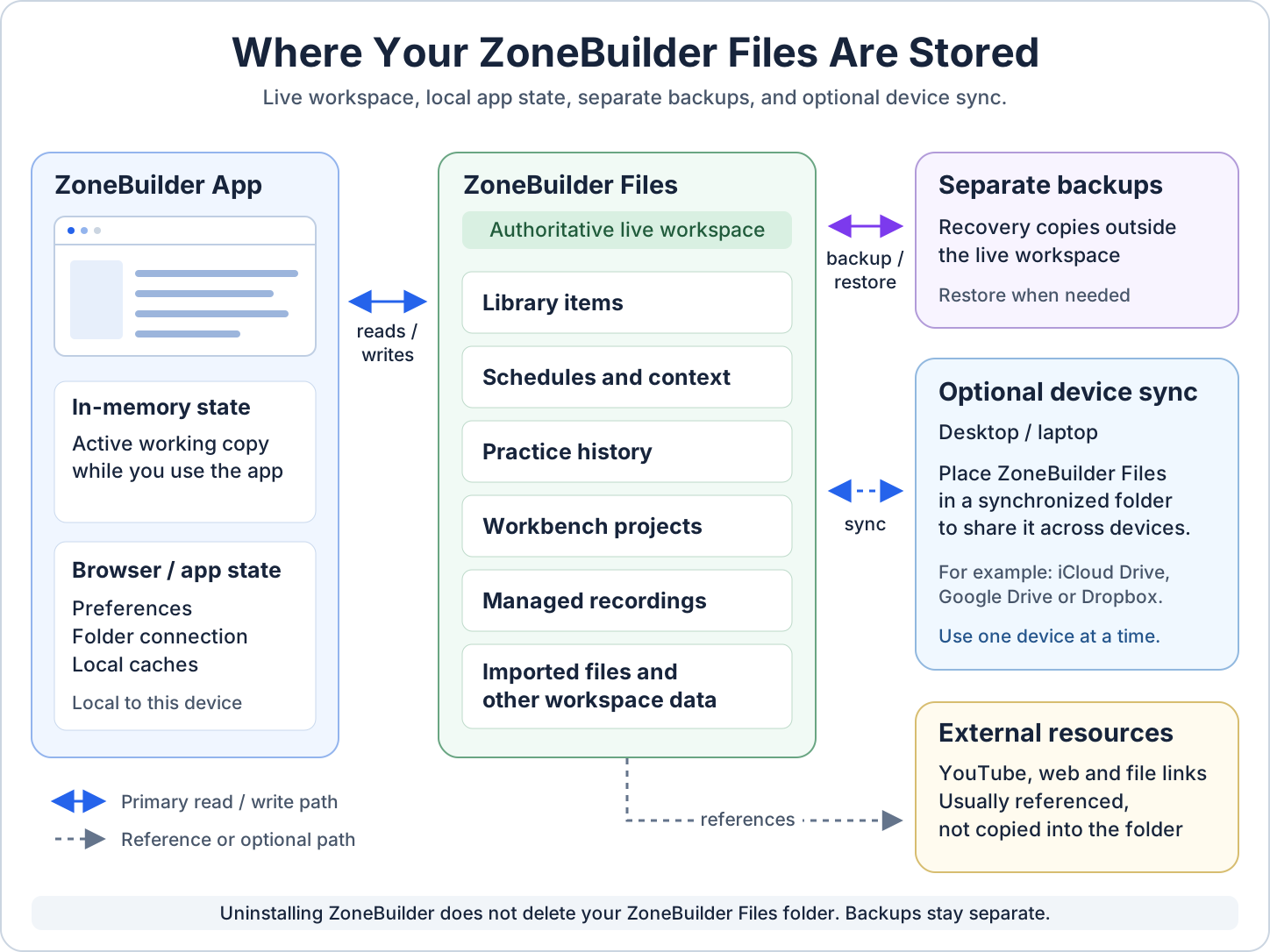 Open diagram larger
This folder contains the data ZoneBuilder actively reads and writes: Library, schedules, recordings, Workbench projects, managed imported files, practice history, and other ZoneBuilder-managed data.
Browser or app state may store preferences, remembered folder connection, local caches, and temporary runtime information. Your main practice data belongs in ZoneBuilder Files.
Backups are stored outside the live workspace and are used for recovery. They are separate from the ZoneBuilder Files folder you practice from each day.
If ZoneBuilder Files is placed inside iCloud Drive, Google Drive, Dropbox, or another suitable synchronized folder, that service can sync the workspace between computers. Avoid editing the same workspace from two computers at the same time.
YouTube videos, web links, Google Drive links, Dropbox links, and similar external resources usually stay where they are. ZoneBuilder stores the reference so the material remains connected to your practice.
Uninstalling ZoneBuilder does not delete ZoneBuilder Files. Backups are separate too. Deleting the ZoneBuilder Files folder is a separate action you would take yourself.
The app reads and writes that workspace, while app state, backups, sync services, and external links each have their own role.
New to Structured Practice
Plan Your First Practice Routine
Start with one goal and a few meaningful practice items.
ZoneBuilder helps turn a small set of real practice material into a routine you can actually run. You do not need a huge Library to begin.
Choose a clear musical direction before building the routine.
- Cleaner chord changes
- Better timing
- Learn the fretboard
- Improve picking technique
- Maintain songs I already know
- Prepare for a lesson or performance
- A drill
- A song or part of a song
- A backing track
- A lesson or video
- Notes from a teacher
You don't need everything. A few good practice items are enough to build your first routine.
Create your practice items in the Library, then let ZoneBuilder organize them into a repeatable routine you can actually run.
- Spider Exercise
- Shuffle Rhythm Drill
- Blue on Black
- Backing Track
You don't need a complete practice library.
One goal, one drill, one song, and a few supporting resources are enough to begin.
Ready to build your first routine?
Open the Library when you are ready to create a few meaningful practice items and start small.
Practice Workflow
How ZoneBuilder Organizes Practice
Build a reusable practice system, not a fresh checklist every day.
ZoneBuilder starts with what you want to improve, connects that goal to the material in your Library, then uses schedules to decide what belongs in today's practice session.
Mental Model
How ZoneBuilder thinks.
- 1GoalsWhat am I trying to improve?
- 2LibraryThe material that supports those goals.
- 3CollectionsWhat belongs together before scheduling.
- 4SchedulesRules for when practice appears.
- 5Today's SessionA focused queue for now.
Each step answers a different question. Together they create a reusable practice system.
Goals Drive The Library
Build your Library around what you want to improve.
Goals answer: "What am I trying to improve?" Everything else in ZoneBuilder exists to support that answer.
Goal
Play Friday night songs cleanly at tempo.This goal tells you what belongs in the Library and what should show up in practice.
Growing Practice Library
Songs
Drills
Activities
Solos
Resources
Collections
The Library holds the material. Goals give that material a reason to exist.
Collection Example
Collections answer: "What belongs together?" Schedules answer: "When should I practice it?"
Friday Night Set Collection
Referenced by Keep Fresh
Two songs per session
Schedules Decide When
Turn the Library into repeatable practice rules.
Schedules do not replace your Library. They point at the right material and decide when it should appear.
Daily Foundation
Every session- Warmup
- Spider Exercise
Core fundamentals appear predictably.
Guided Key Practice
Every 4 days- Major / Minor Key Change Licks
ZoneBuilder remembers which key comes next.
Keep Fresh From A Collection
Daily rotation
Friday Night Set Collection
Keep Fresh: 2 songs per session
Today: Song #7 + Song #8
The schedule references the Collection, then chooses a manageable slice for today.
Weekly Activities
Specific days- Blues Improv: Mon / Wed
- Ear Training: Tue / Thu
Focused activities land on the days you want them.
Run Today's Session
Practice the queue ZoneBuilder creates for today.
Today's queue is the result of your goals, Library, Collections, and schedules working together.
Example Monday
- WarmupDaily FoundationCurrent
- Spider ExerciseDaily FoundationNext
- Diatonic Sequence RunsTechnique RotationQueued
- Major / Minor Licks in BbGuided Key PracticeQueued
- Blues ImprovWeekly ActivityQueued
- Friday Night Set: Song #7Keep Fresh CollectionQueued
- Friday Night Set: Song #8Keep Fresh CollectionQueued
- Solo Rotation: Solo #3Solo RotationQueued
What happens next?
You practice the queue. ZoneBuilder remembers what moved, what is due next, and how tomorrow's session should be assembled.
What ZoneBuilder Handles
Useful memory, not extra bookkeeping.
Remembers which repertoire songs are due
Remembers which keys come next
Rotates practice material
Schedules weekly activities
Keeps practice organized
Don't begin every practice session by asking, "What should I practice today?"
Build your practice system once. Then let ZoneBuilder assemble today's session automatically.
Your Library and schedules become a reusable practice system, so every session can begin with a clear queue.
Ready to work with the system?
Use the Library to shape your material, then build a schedule when you are ready to decide when it appears.
Workflow
Map Your Existing Practice System
Your practice system already exists. ZoneBuilder simply organizes it.
Most musicians already have a routine. It might live in memory, notebooks, folders, bookmarks, spreadsheets, or habit. ZoneBuilder brings those pieces into one reusable system.
Mental Mapping
Your routine → ZoneBuilder
Each question has a home in ZoneBuilder. Together they create a reusable practice system.
What You Already Do
Your routine is already a system.
Even if it lives in your head, your routine already has decisions: what to improve, what belongs together, and what should happen today.
Familiar routine
Warm up
Practice technique
Work on songs
Review older material
Improvise
Take lessons
ZoneBuilder starts with the way you already practice.
How ZoneBuilder Organizes It
Your thinking stays familiar. The structure gets clearer.
ZoneBuilder gives each part a home so it can be scheduled, rotated, resumed, and remembered.
Where everything belongs
Goals: what to improve
Library: practice material
Collections: what belongs together
Schedules: when to practice
Today's Queue: what to play now
Example translation
Related songs
Friday Night Set Collection
Keep Fresh chooses today's songs
Collections define the group. Blocks and schedules define how that material appears in practice.
What You Gain
Less deciding. More playing.
ZoneBuilder assembles today's session from that system.
Today's Session
- Opening RoutineWarm-up Daily prepCurrent
- Technique RotationTwo focused drillsNext
- Weekly ActivityBlues ImprovQueued
- Keep FreshTwo repertoire songsQueued
- Lesson ResourceReview teacher notesQueued
What changes?
Automatic rotation
No forgotten songs
Practice history
Resume where you left off
Balanced sessions
Less decision fatigue
You don't need a new practice philosophy.
You already know how you like to practice. ZoneBuilder remembers your routine, organizes your material, and assembles today's session so you can play more and decide less.
Bring your practice system. Let ZoneBuilder handle the organization.
Ready to map your routine?
Open the Library to organize your material, then build a schedule around your routine.
Example Advanced Schedule
45 minutesTechnique Rotation AMon · Wed · Fri
- Inside Picking Two-string accuracy
- Shuffle Rhythm Activity
- Fretboard Note Drill Below and above 12th fret
- Current Song Sequence Verse riff, chorus, full pass
- Pentatonic Key Drill
Loops inside the session, so the same focus returns after short context switches.
Technique Rotation BTue · Thu · Sat
- Outside Picking
- Chord Change Timing
- Fretboard Note Drill Different starting points
- Current Song Sequence Bridge, transitions, full pass
- Blues Lick Key Drill
Alternates with Rotation A across days, while still looping when it appears.
Keep Fresh Collection - RepertoireDaily
Friday Night Set: 12 songs
Show 2 songs per session
Keep Fresh Collection - SolosDaily
Blues-rock solos and favorite phrases
Show 1 item per session
Key Rotation DrillDaily
Pentatonic sequence moves through the configured key list over time.
Spaced RepetitionDue Today
Learned phrases return only when their repetition interval comes due.
What The Schedule Is Doing
Interleaving
Inside the session, then across the week.A Rotation Block can run several times in one session, revisiting a drill or song after brief context switches. Across sessions, related blocks can also alternate by day.
Inside today's session
Across practice sessions
Round 1Picking drill
Song riffcontext switch
Round 2Drill returns
Keep Freshanother context
Round 3Drill returns
MonA
TueB
WedA
ThuB
FriA
SatB
SunRest
Keep Fresh
A small portion of each larger collection appears today.
12 SongsToday
2 SongsNext
2 More
2 SongsNext
2 More
Key Rotation
The same drill moves through keys while ZoneBuilder remembers progress.
ABbBCDbDEbE
Guide Planned
Spaced Repetition
Learned material returns at useful intervals instead of every day.
Review #11 dayReview #23 daysReview #37 daysReview #4
Choose the Right Tool
Good Rules of Thumb
Use Rotation Blocks when a group should rotate as one unit. Let the scheduler manage the container.
Use Keep Fresh when the collection is bigger than the day. Show only a manageable slice.
Use Key Rotation when one drill should travel. Let the key change while the idea stays the same.
Use Spaced Repetition after material is learned. Bring it back when it needs attention.
Living Schedule The plan stays stable, but today's exact work changes as session loops return, weekly rotations advance, Keep Fresh selections move, keys progress, and Spaced Repetition items come due.
Now Build Your Own
Begin with one daily block, one rotation block, and one maintenance rule.
Add Key Rotation, ordered practice, and Spaced Repetition only when they solve a real practice problem.
MyZone iUse MyZone to review your practice momentum, history, and shareable reports.
Your deeper progress, history, and report workspace.
Practice mix
Where your recent energy is going.
Recent recordings
Listen to recent takes without leaving Dashboard.
Rolling 30-Day Practice Trend
Historical context across the last 30 days.
Top items
The drills, songs, and activities getting attention.
Recent notes
The latest practice context you captured.
Goal contact
How recent work connects to the bigger why.
Signals worth noticing
Journal
Practice journal
Readable entries generated from the practice history you already have.
No practice logged for this period yet.
Practice Report
ZoneBuilder Practice Report
A reviewable snapshot generated from this week’s practice, notes, and recordings.
Daily Practice Time
Last 30 Days
Most practiced
Time by type
Recordings for review
Notes
Focus areas / concepts worked
Detailed history
Schedule Workspace
Schedule Builder
Scheduling Mode
?
Simple Scheduling builds playlist-style schedules quickly for straightforward daily practice.
Advanced Scheduling uses Practice Blocks, Scheduled Items, and calendar planning for more control.
You can switch at any time and use both styles if you want.
Create or activate a schedule first.
Choose how this Schedules screen builds practice.
Current Schedule
Switch Schedules
Priority
Items near the top are practiced first. Move the most important material higher when you want it to receive more attention.
Daily Flow
With Start Over Each Day, top items matter most. With Continue Where I Left Off, the schedule can pick up from your previous place.
Schedule Priority
Schedules run from top to bottom. Blocks higher in the schedule generally receive attention before blocks lower down.
Block Priority
Move important blocks higher. Inside a block, move important items higher so they appear earlier in that part of practice.
Recurring Work
Use Practice Blocks when material belongs together for a specific practice purpose. Scheduled Items belong to calendar/review rules.
Current Schedule
A playlist of practice items.Today's Generated Schedule
1
Practice Blocks Why Use Practice Blocks? Use Practice Blocks when you have a collection of items you want ZoneBuilder to schedule and rotate as a block. Examples: Technique drills, songs, solos, repertoire. Each Practice Block has its own schedule rule. When that rule matches today, ZoneBuilder generates the block as scheduled work.
Reusable rotating practice groups.
2
Scheduled Items 0 items Why Use Scheduled Items? Use Scheduled Items when something must appear on a specific day or schedule. Examples: Daily warmups, lesson notes review, performance preparation. Scheduled Items appear based on the schedule rules you assign.
Specific items that appear on specific dates.
3
Events & Notes 0 items Why Use Events & Notes? Events and Notes help you track important dates alongside your practice. Examples: Lessons, rehearsals, performances, travel days, reminders. They appear on scheduling calendars, Event/Note calendars, Preview Calendar, and Day Details. They are informational only and do not generate practice items, change schedules, reschedule activities, or alter spaced review timing.
Calendar context. Does not drive practice queues.Organize
Drills: Organize practice drills and their availability for practice planning.
0 total
0 available
0 archived
Help
Build your first practice system
Use this optional guide to shape goals, practice items, relationships, and the first practice queue from inside Library.
Workspace
Goals workspace
Connect goals to the drills, songs, solos, and activities that support them.
Pool Settings iPooled settings control how available non-daily items rotate into generated practice sessions.
Controls how songs rotate into practice.
Saved Drills
0 items
No records match this view.
Setup P09J
Use these steps to create goals, add items, make them available for scheduling, start practice, and review progress.
Example Setup
ZoneBuilder works for any instrument, voice, or mixed practice setup.
These example programs demonstrate how a practice system can be organized around goals, supporting items, and rotations. Use one to explore the workflow, then adapt it or replace it with your own setup.
Create a goal
Goals are optional, but they help keep the practice pool focused.
Add practice items
Create drills, songs, solos, or activities that belong in your practice system.
Set item availability
Use Available to Schedule / Archived to control what appears in Scheduler.
Start a session
Go to Dashboard and start a queue from available practice items.
Review progress
Open the log to review today’s completed and skipped practice items.
Backup / Restore
Export a backup or restore a saved ZoneBuilder backup file from your phone.
Goal Map
For each goal, see the practice items currently supporting it.
Goal Plan
Goals and practice items
Goal Map
Loading setup summary...
Workbench
Audio Recording
No project selected
Audio
--
Video
--
ZoneBuilder
--
Budget
--
Select or create a recording project.
Projects collect notes and multiple takes.
Practice Item
No practice item linked
Add a practice item when this recording project belongs with a drill, song, solo, or activity.
Associated Item
Recorder
Ready
Record a take for this project.
Z
Import to Library
Paste content, review detection, create a draft item, then save.
1 Import
2 Review
3 Save
Import
Paste or drop material
PDF Phase 1 extracts text when available and previews the file. Scanned/image-only PDFs may not contain extractable text yet.
Review
Confirm Import Type
Check what ZoneBuilder believes you imported, then choose the best fit.
Nothing imported yet.
Paste text or drop a file to see what ZoneBuilder detects.
Show Original Import 0 characters
Paste text to preview it here.
PDF PreviewNo PDF selected
Preview only. PDF files are not stored by this alpha import pass.
Extracted Links
Meaningful nearby labels are used when possible.
Advanced Detection Details Raw detection, split tools, warnings, and parser context
Review choices will appear after import.
ZoneBuilder will suggest save options once there is material to review.
Save
What would you like to do with this material?
Choose the outcome first. Metadata and advanced options are optional.
Content Summary
Paste material to inspect links and text.
Looks like a simple URL import
This looks like one useful link with minimal surrounding text. URL Resource Only is recommended.
Choose Outcome
What should ZoneBuilder create?
Use It Now
Create practice content from this material.
File It Away
Store this as reusable lesson notes, reference material, or a Library resource.
Do Both
Create practice content while preserving the original source material.
URL Resource Only
Use when the imported material is primarily a link.
Review / Split First
Use when the imported content contains multiple drills, activities, songs, or practice items.
What would you like to create?
Choose the closest match before saving practice content.
Metadata
Optional details for the Library copy.
Advanced Link Handling Choose how detected links are saved.
CreativeZone
A future workspace for capturing ideas, fragments, riffs, voice notes, and sketchbook material.
Creative Capture
Creative capture workspace coming soon
Later this can become the place for quick recordings, notes, rough song ideas, motifs, and practice sparks before they become formal goals or practice items.
Settings
Daily-use practice preferences, companion defaults, and practice behavior.
Appearance
Display and visibility.
VisibilityAdjust contrast and glare handling throughout ZoneBuilder.
Practice Defaults
Default behavior for practice companions.
Scheduled / Full Breaks
Longer resets that appear after a configured amount of active practice time.
Micro Breaks
Brief visual resets between scheduled practice items.
Library Settings
Resource browsing and maintenance.
Workbench
Recording, project organization, and storage guidance.
Audio & Video Recording
Choose the saved format for new durable Workbench recordings. Existing recordings are not converted.
Projects & Organization
Keep normal Audio Recording and Video Recording projects separate unless you intentionally combine them.
Recording Storage
Storage reminders use the current Workbench budget: Healthy above 25% remaining, Caution at 15-25%, Low at 5-15%, and Critical below 5%.
Current storage reminderStorage usage will appear after Workbench loads.
System
Data protection, recovery tools, configuration review, and app maintenance.
Application Storage
Application Storage
Choose where ZoneBuilder creates and reconnects the files it actively uses.
ZoneBuilder Files
Checking
ZoneBuilder Files contains the files ZoneBuilder actively uses, including projects, documents, recordings, configuration, and Workbench files.
This is separate from your Backup Folder.
Create a new folder named “ZoneBuilder Files,” then select it.
Tip: Use Copy Name, then paste the name into the browser’s New Folder dialog.
Folder Connection
The folder connection and structure are valid.
Technical Details
How to set this up
- Click Create or Choose ZoneBuilder Files.
- Read the ZoneBuilder guidance before the folder picker opens.
- Create or choose a dedicated folder in Documents, iCloud Drive, Google Drive, Dropbox, or another suitable location.
- ZoneBuilder inspects the folder before changing the active connection.
- Confirm the folder if it is empty or already recognized as ZoneBuilder Files.
Empty folders are ready for Restore a Portable Backup or Create New Library. Existing ZoneBuilder Files folders reconnect to the library already on disk.
Using a synced folder
A synced location can support desktop and laptop access. Avoid editing the same ZoneBuilder Files folder from two computers at the same time until conflict handling is fully available.
Removing ZoneBuilder completely
Uninstalling the PWA does not delete ZoneBuilder Files. Clearing browser site data removes local settings and permissions, but not filesystem data. Delete the ZoneBuilder Files folder and backups separately if you want all data removed.
ZoneBuilder Backups
Coming Soon
ZoneBuilder Backups will be a separate location for dated safety snapshots of ZoneBuilder Files.
Backup setup is intentionally separate from ZoneBuilder Files and will refuse unsafe nested or reused folders.
Existing local backup tools
Existing Local Backup Location
Checking
Current use
Automatic backups
Backups are stored in the selected location's Backups directory.
Planned uses
- Saved recordings Planned
- Documents Planned
- Generated exports Planned
- Other ZoneBuilder assets Planned
These tools preserve the existing local backup behavior while the new ZoneBuilder Backups model is being prepared. No Google login is required.
Availability and folder structure
Best for desktop Chrome or Edge. ZoneBuilder creates Backups/, Recordings/, Documents/, and Exports/ inside the selected root, keeps the five most recent restore points, and compresses new backups when supported.
Choose a folder already synced by iCloud Drive, Dropbox, OneDrive, or Google Drive Desktop if you want off-device protection.
Unsupported browsers can continue using Export Backup and Cloud Backup.
Data Protection
Protect and recover your practice data.
Backup needed
Protect your ZoneBuilder data
Use Export Backup or the existing backup tools while ZoneBuilder Backups are being prepared.
Automatic Local Backups
Automatic Local Backups
Checking
Backups are stored in:
Existing local backup location / Backups
Managed from Application Storage.
Manual Backup
Export Backup
Download a portable backup ZIP you can save anywhere. It includes native restore data plus readable Markdown and CSV inventory files.
When to use this
Best as a universal fallback before imports, restores, factory reset, or major setup changes.
Your browser downloads a named backup file, but ZoneBuilder cannot clean up old files from your Downloads folder.
Off-Device Protection
Cloud Backup
Local Only
ZoneBuilder is currently protected by manual local backups.
Automatic backup attempts run while this page stays connected to Google Drive. Manual backup remains available.
How this protects you
Best for off-device protection. Backups are stored in Google Drive app data, so they can survive browser resets and device loss.
Because ZoneBuilder is a static PWA, Google may occasionally require you to reconnect before pending changes can be backed up.
Restore / Import
Restore Backup
Choose a downloaded or local-folder backup to preview it first. If this replaces an existing library, ZoneBuilder asks you to confirm before restoring.
Existing libraries are only replaced after you confirm.
Uninstall / reinstall data safety
Uninstalling ZoneBuilder does not delete your ZoneBuilder Files folder.
Your authoritative Library, schedules, practice history, resources, and managed recordings remain in ZoneBuilder Files.
If uninstalling or clearing site data removes the saved folder permission, reinstall ZoneBuilder and reconnect the existing ZoneBuilder Files folder. ZoneBuilder will load the library from disk; a backup restore is not required.
Reset Browser Connection & Identity clears browser-side connection and identity data only. It does not delete the ZoneBuilder Files library.
Recovery
Reset only what you mean to reset.
Scheduling Reset
Clear Scheduling Configuration
Remove saved Schedule Builder drafts, legacy custom schedules, rotation settings, and the current session queue. Library items, goals, references, and practice logs are kept.
Browser Connection & Identity
Reset this browser's ZoneBuilder connection
Clears browser-side connection, cache, preferences, temporary recordings, and identity data. Your ZoneBuilder Files folder and authoritative library remain unchanged; reconnect the folder after reload.
This does not delete your ZoneBuilder Files library. ZoneBuilder may ask for email approval and folder access again after reload.
Configuration Review
Practice Configuration Review
Review setup issues that could affect navigation, schedules, imports, references, or how clearly your practice system is organized.
Configuration review has not been run yet.
Health Results
Errors, warnings, and suggestions to review
Support Diagnostics
Copy safe diagnostics for support.
Feedback Reports
Latest Feedback Report
Copy the most recent generated feedback report, including the frozen diagnostic snapshot and Practice lifecycle history.
Practice Lifecycle
Practice Lifecycle Log
Copy the recent Practice black box event log when a tester reports a stuck or unexpected Practice state.
Practice Workspace Context
Per-item workspace memory
Stored contexts: not available yet.
Performance
Performance Diagnostic
Run this when ZoneBuilder feels slow, clicks lag, screen changes stall, timers drift, or the metronome falls behind.
About
Version and build information.
ZoneBuilder
Local-first practice system
© 2026 Scott Hertzog. All rights reserved.
Alpha Software Disclosure Review the current alpha notice and local acknowledgement status.
ZoneBuilder Alpha Software
Disclosure version alpha-disclosure-v1
You are using an early test version of ZoneBuilder. This software is still under active development and has not completed final testing.
Alpha software may contain bugs, may behave unexpectedly, and may result in loss or corruption of application data. Features may change, stop working, or be removed without notice.
Do not rely on ZoneBuilder as the only copy of important files, recordings, notes, practice data, or other information. Keep independent backups of anything important.
ZoneBuilder may connect to third-party services such as Dropbox, Google, or YouTube. Those services remain subject to their own terms, availability, permissions, and security practices.
By continuing, you acknowledge that you are voluntarily participating in an early software test and understand that the software is unfinished.
Do not use this alpha version for critical, safety-sensitive, financial, medical, or other high-risk purposes.
If ZoneBuilder encounters a problem, you may be asked to provide screenshots, diagnostic information, or steps that reproduce the issue. Do not submit passwords, access tokens, or other sensitive credentials.
- Status
- Not acknowledged in this browser
- Accepted at
- —
- Build at acceptance
- —
- Backend sync
- —
Third-Party Software Open-source licenses, copyright notices, and source information.
LAME MP3 Encoder
ZoneBuilder uses LAME for browser-based MP3 encoding, including saved Practice and Workbench recordings.
- LAME version
- 3.100
- LAME copyright
- © 1999–2000 Mark Taylor; © 2000–2005 Takehiro Tominaga; © 2000–2017 Robert Hegemann; © 2000–2005 Gabriel Bouvigne; © 2000–2004 Alexander Leidinger. Additional notices in source.
- LAME license
- GNU Library General Public License v2.0 or later
- Wrapper package
- wasm-media-encoders 0.7.0
- Wrapper license
- MIT
Notice
LAME License
LAME Notes
Wrapper License
Build Provenance
Download MP3 source
Source and relink instructions
Matching LAME source, encoder bridge, build instructions, and licenses are available in the source download above. Downloading them is optional and does not affect your Library or Practice data.
Signalsmith Stretch Web 1.3.2
Pitch shifting and time stretching for ZoneBuilder audio playback.
- Copyright
- Copyright © 2022 Geraint Luff / Signalsmith Audio Ltd.
- License
- MIT License
- Package
- signalsmith-stretch 1.3.2
- Runtime
- Bundled locally
ZoneBuilder ships the official Signalsmith Stretch Web package locally for key-change and time-stretch playback features.
PDF.js 6.3.289
Local, canvas-only PDF rendering in Practice Split View.
Developer
Developer-only utilities and future diagnostics live here when Developer Mode is enabled.
Legacy Library
Open the previous Library for developer testing.
Resource / Provider Testing
Normal Dropbox access.
Testing preference only. Existing tokens, provider records, and cached audio are kept.
YouTube inclusion
Preview the same chooser used after Connect and Review, using current discovered data. No sign-in, indexing, or Library changes.
Developer Reference · One shared session
Practice Presentation
Practice uses the accepted Next layout. Previous Practice is a fallback using the same live session.
Developer Fallback · Existing Items
Item Editor Next Comparison
Compare two editors for the same Item. Both save to your current Library.
No Drill selected.
Developer Prototype
Compact Practice Prototype
Proof-of-life phone presentation using the live Practice runtime, queue, and session.
Demo Data
Demo Data
Load or remove demo records, references, recordings, break events, and 30 days of practice logs for testing.
Analytics
Analytics Mode
Choose how in-app analytics should label this browser. Auto uses development on localhost/file URLs and production on hosted app URLs.
Developer-only · This installation
Detailed Practice Analytics Pilot
Send new detailed Practice facts for the workspace selected when you turn the pilot ON. Existing historical backlog stays outside the pilot.
OFF
OFF preserves pending pilot events for later resume. Facts created while OFF stay outside the pilot. Switching workspaces pauses transmission; turn OFF then ON to bind the selected workspace.
Loading pilot diagnostics…
Break Image Review
Break Image Review
Inspect the Microbreak and Full Break image collections driven by the break image manifest.
Developer Tool
Practice Workspace Model Inspector
Inspect isolated audio and video workspace models without changing the active Practice session.
Realistic Practice Frame
Approx. 1234 × 555 px upper workspace at a 1500 × 900 desktop viewport. Overflow here is intentional design pressure.
Current Practice Item
Loaded from current Practice item.
Inspector only. Active Practice state is unchanged.
Dynamic Upper Canvas
Audio / Backing Track Mode
One active Workspace Card sits above the compact backing-track controls.
Answer the backing track with two short ideas, then repeat the stronger one.
Pair the selected viewer with a PDF, tab, or instruction reference without showing more than two large viewers.
Backing Track Control
Blue shuffle - 88 BPM
0:42
3:18
Speed
Dynamic Upper Canvas
Video Lesson Mode
Top card stays available while the video plays below.
Watch the muted upstroke, then return to this card for the exact two-bar target before playing along.
Pair the lesson video with tab, PDF, or instructions when the user asks for a second viewer.
▶
Teacher lesson video
Large enough by default to see hands, picking direction, chord shape, and timing detail.
Video Media Deck
Muted upstroke lesson
Video plays here while the top Workspace Card remains available.
Developer inspector. No scheduler, datastore, or active Practice state is modified.
Bridge v1
Resolved Workspace Model
Inspect isolated resolver output without modifying the active Practice session.
Raw model JSON
Filesystem Diagnostics
ZoneBuilder Files
Inspect the ZoneBuilder Files connection without reading file contents or changing application data authority.
Startup Gate Preview
ZoneBuilder Files startup states
Preview the startup storage gate without deleting real data or changing the saved ZoneBuilder Files handle.
Practice State
UNKNOWN
Why the Practice screen is showing its current state.
Practice Lifecycle Log
Practice Lifecycle Log
Copy the most recent Practice lifecycle events when diagnosing a stuck or unexpected Practice state.
Internal Monitoring
Analytics Snapshot v1 Pilot
Build a reporting projection from this workspace's authoritative local data, then manually publish it to Analytics.
Performance Diagnostic
Performance Diagnostic
Run a short local responsiveness check plus route-transition timing for sluggish navigation, timer drift, metronome lag, or Practice screen delays.
Scheduler Diagnostics
Scheduler Diagnostics
Recent scheduler and practice-engine events for debugging queue/source mismatches.
Progress Diagnostics
Journal / Progress Consistency
Seed boundary-case practice history, rebuild MyZone from raw logs, and compare Today, This Week, and This Month.
Developer Preview · Real Library remains unchanged
ZoneBuilder
Developer Preview Stage
Welcome to ZoneBuilder
Build your practice.
Find your zone.
Start by creating practice material, exploring freely, or learning how ZoneBuilder works.
First-Run Preview
Welcome Preview
Future first-run experience will render here.
0Preview catalog items
0Preview schedules
0Real Library items preserved
Loading Compact Practice…
ZoneBuilderCompact
Practice ScheduleSession 0s
Current Item
Ready
Custom
Ready
Microphone availability is being checked.
There is no active queue.
Clean
Clean
Review only
ZoneBuilder Alpha Software Disclosure
This review view does not create, replace, clear, or send an acknowledgement.
Next Step
Action complete
Practice Flow
Unscheduled Practice
Available practice items will appear here.
Practice now
Start a one-time practice session
One-time sessions are tracked for this practice run only. They do not create a permanent Library item.
Log past practice
Choose a Library item to log
Library items will appear here.
Log past practice
Log something not in my Library
Log Practice
Log Practice
Logging practice adds history only. It does not create or change Library items.
Restore Backup
Restore this backup?
Review the backup summary before restoring.
Before you restore: Your current ZoneBuilder state will be backed up first so you can recover it later if needed.
Quick Edit
Edit Item
Add Item
Add Drill
Focus Space
Things To Focus On
Choose what to pay attention to before you begin the drill.
Unsaved Focus changes
Save your changes before closing?